How to Use iOS 26 Widgets Like a Pro: Productivity Hacks for Social Media Creators
Once upon a digital dawn, social media creators everywhere woke up to a brighter home screen — one that could do more than just look beautiful. With iOS 26, Apple has given its users a smarter, sleeker way to interact with their devices. Widgets have evolved from small blocks of information to dynamic tools that shape workflow efficiency and keep you in creative sync. If you’ve ever wondered how to use iOS 26 widgets to boost productivity and creativity, you’ve landed at the right place. Let’s dive into a roundup of hacks designed perfectly for creators on the go.
1. Customize the Home Screen Like a Digital Studio
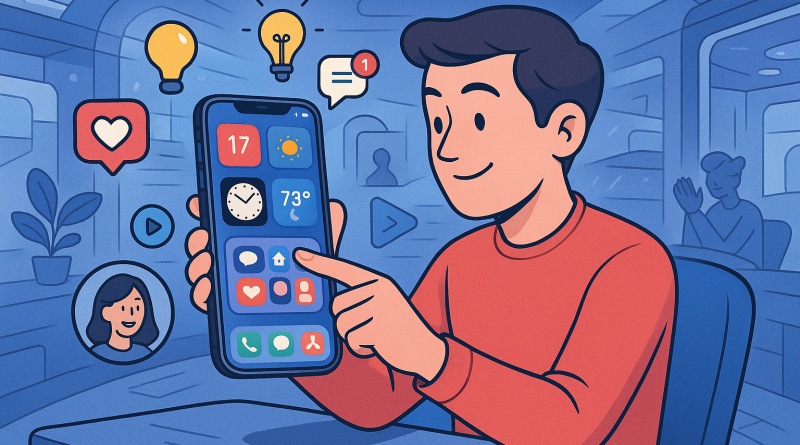
Think of your iPhone’s home screen as your creative workspace — every tap, swipe, and glance should serve a purpose. With iOS 26, Apple lets you pin interactive widgets that do more than display data. Now you can edit posts, manage task lists, and even preview analytics directly from your home screen.
Hack: Combine a Calendar Widget for scheduling, a Notes Widget for quick captions or ideas, and a Social Media Insights Widget for tracking engagement. Arrange them by priority so that your creative flow never breaks.
2. Use the Smart Stack for Effortless Focus
Smart Stacks are one of iOS 26’s underrated gems. By rotating through widgets based on time, activity, or location, your phone predicts what you’ll need next. Heading into a brainstorming session? Your Notes widget appears. Wrapping up your day? The Health widget slides in to remind you to breathe.
Productivity Tip: Social media creators can create a custom stack with widgets for editing tools, idea boards, and time management. It’s the closest thing to having a digital assistant that truly understands your routine.
3. Automate Moments with Shortcut Widgets
If you’ve dabbled in Apple’s Shortcuts app, you’ll love integrating its power with widgets. iOS 26 lets you turn any shortcut into a widget for one-tap execution. You can automate nearly anything — posting a drafted tweet, adjusting lighting for your next livestream, or even preparing your daily content schedule.
Hack: Create a “Content Creator Toolkit” shortcut that opens all your essential apps — camera, editing suite, notes, and analytics — in one smooth sequence. Turn that shortcut into a widget and watch your workflow transform.
4. Integrate Third-Party Widgets for Amplified Creativity
While Apple’s native widgets are powerful, integrating third-party options supercharges your productivity. Apps like Notion, Trello, and Buffer have adapted perfectly to iOS 26’s new widget framework. You can keep track of content calendars, monitor post metrics, and jot down spontaneous ideas directly from your screen.
Pro Tip: Always balance functionality and aesthetics. A tidy layout with just enough color contrast keeps you focused while maintaining Apple’s signature minimalism — the hallmark of creative excellence.
5. Keep It Minimal, Keep It Flowing
As tempting as it might be to fill your entire home screen with widgets, remember that creativity thrives in calm spaces. Choose widgets that help you take action, not just observe. Productivity in iOS 26 isn’t about having everything — it’s about having the right things in the right place.
Hack: Refresh your widgets weekly. iOS 26 makes it easy to move and swap them out according to your projects — whether you’re in content creation mode, editing sessions, or social growth planning.
6. Sync Across the Apple Ecosystem
One of Apple’s greatest strengths lies in its seamless integration. With iOS 26, widgets can now mirror and sync with your iPad and Mac instantly. Update a reminder on one device, and see it reflected everywhere — no more missed deadlines or lost ideas.
Pro Productivity Move: Use Continuity features to start posting insights from your iPhone and finish detailed drafts on your MacBook, all synced through the same widget data. The Apple ecosystem keeps your entire creative operation fluid and connected.
7. Monitor Your Digital Health
For creators, burnout is real. The new Wellness widgets in iOS 26 are designed to help you balance productivity with mindful breaks. Track screen time, reminders to stretch, or even moments of quiet reflection with apps like Mindful Minute.
Hack: Add wellness widgets to your secondary screen so you’ll remember — productivity starts with balance.
Conclusion: The Future of Creative Efficiency Lies on Your Home Screen
The magic of iOS 26 isn’t just in its design but in its intention — giving users control of their time, focus, and creativity. For social media creators, mastering how to use iOS 26 widgets means stepping into a world where your device doesn’t just support your work; it leads it. Each widget placed with purpose becomes part of your creative rhythm, empowering you to tell stories, build communities, and shape digital experiences effortlessly.
Ready to take your mobile productivity to the next level? Visit iphone26.com to get the best in Mobile Communication Solutions and unlock the full creative potential of the Apple ecosystem today.