
Mastering iOS 26 Widgets: How to Use iOS 26 Widgets Like a Pro
If you love customizing your iPhone, then you’re going to be thrilled with the new widget enhancements brought by iOS 26. Whether you’re a longtime tech lover or exploring iOS for the first time, learning how to use iOS 26 widgets will change the way you interact with your iPhone. At iphone26.com, we’re all about helping our community get the most out of digital tools—and today’s guide is perfect for leveling up your home screen game.
Know What’s New with iOS 26 Widgets
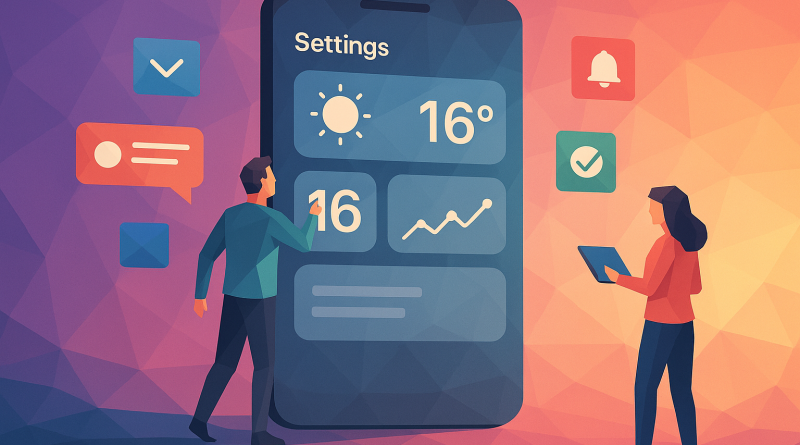
Apple has pushed widget customization further than ever in iOS 26. You’ll now find interactive widgets that allow you to complete tasks—like checking off reminders or playing music—without even opening the app. Plus, with Smart Stacks 2.0 and dynamic resizing, you get more control and context straight from your home screen.
Adding Widgets to Your iPhone Home Screen
To get started:
- Tap and hold an empty space on your home screen or any app until you enter “jiggle mode.”
- Tap the + in the top-left corner of your screen.
- Choose from a wide range of widgets—Apple apps or third-party ones compatible with iOS 26.
- Select your preferred widget size, then tap “Add Widget.”
- Drag it to your preferred spot and hit “Done.”
Creating Your Own Smart Stack
Feeling more adventurous? Create a Smart Stack that adapts to your day:
- Stack multiple same-size widgets on top of each other during “jiggle mode.”
- iOS will automatically make them scrollable, and Smart Stack AI will prioritize what you need most based on time, location, and usage.
- Press and hold the stack to “Edit Stack” and toggle Smart Rotate and widget order.
Customize with Community Favorites
The iPhone26 community swears by these top widget apps:
- Widgetsmith – for ultimate flexibility in theme and data display.
- Drafts – to capture quick notes without opening the full app.
- Things 3 – for interactive to-do list widgets that sync beautifully.
Don’t forget: widgets are more than eye candy—they’re productivity tools when used with intent. Take a few minutes to explore your favorite apps; chances are, they’ve embraced the iOS 26 widget upgrade too.
Join the Widget Revolution
Now that you know how to use iOS 26 widgets, let your creativity lead the way. Mix productivity with personal style to make your iPhone uniquely yours. And remember, the iphone26.com community is always exploring new digital frontiers—so drop your favorite widget combos in the comments below!
Ready to get more out of your mobile experience? To get the best in Mobile Communication Solutions, stay connected with iphone26.com—we’ve got your back for every iOS adventure ahead.