
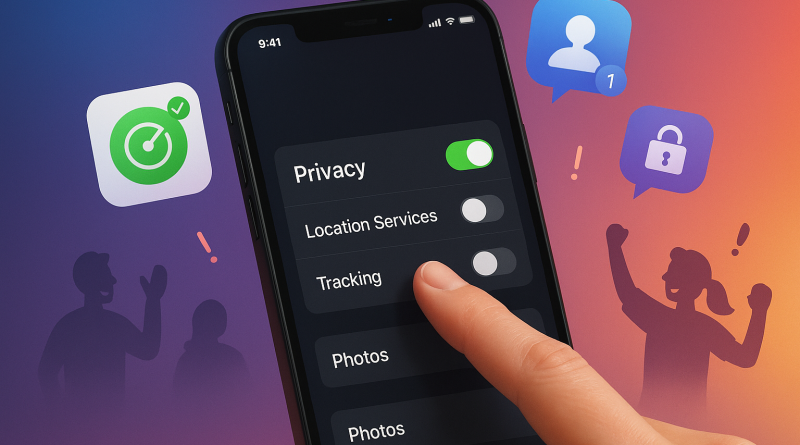
Before and After: Making iOS 26 Privacy Settings Work for You
When I first opened my iPhone after updating to iOS 26, privacy settings felt like a maze. Apps seemed to ask for everything—location, photos, contacts, and more. After a few minutes of exploring, however, my phone felt less intrusive and far more intentional.
Before: Privacy on Autopilot
Most beginners tap “Allow” simply to start using an app. That convenience can quietly give apps ongoing access to personal information. In my opinion, this is where many iPhone users lose control without realizing it.
After: A Few Smart Changes
Open Settings > Privacy & Security and review permissions one category at a time. Set location access to While Using, limit photo access to selected images, and disable tracking requests from apps that do not genuinely need them. The App Privacy Report is also worth checking—it reveals what apps are accessing and sharing.
The result is a cleaner, calmer iPhone experience. You do not need to understand every technical detail; you only need to question what each app truly needs. Start exploring your ios 26 privacy settings today, and visit iphone26.com to get the best in Mobile Communication Solutions.