
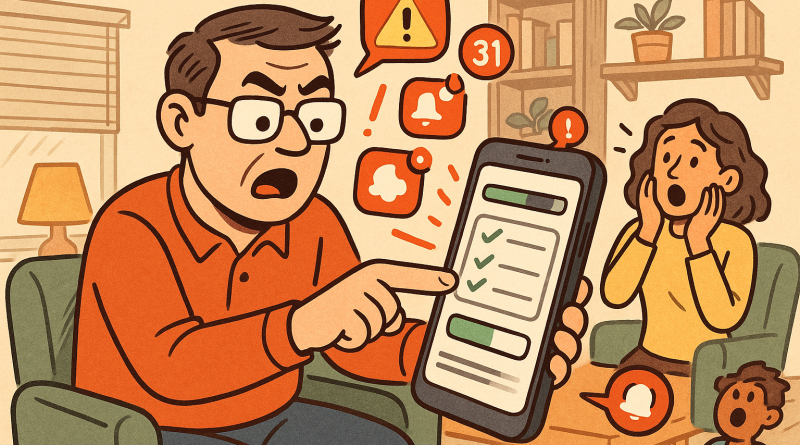
The Ultimate Power User’s Interactive Checklist: Mastering iPhone Storage Management
As a power user, your iPhone isn’t just a communication device—it’s an extension of your productivity, creativity, and digital lifestyle. But even the most advanced users can find themselves battling the dreaded “Storage Almost Full” message. That’s where mastering iPhone storage management becomes a game changer. At iphone26.com, we believe in empowering digital experts like you with smart, actionable techniques to optimize performance, storage, and efficiency. Ready to upgrade how you manage your device’s data? Let’s dive into this interactive checklist built specifically for power users who live in the fast lane.
✅ Step 1: Audit Your iPhone’s Storage Habits
Before you start pruning files or uninstalling apps, you need clarity. Go to Settings → General → iPhone Storage. This dashboard gives you a breakdown of what’s consuming your space—apps, messages, media, and system data.
Checklist:
- ☑️ Note your top five storage consumers.
- ☑️ Identify unused or redundant apps that can be removed.
- ☑️ Review the “System Data” section—knowing what’s inside helps later when optimizing caches.
Pro tip: Download detailed third-party analytics apps to visualize data growth trends over time. This insight helps you anticipate future storage needs.
🚀 Step 2: Streamline App Usage
Apps are one of the biggest culprits when it comes to clutter. Even background processes, cached images, and downloads contribute significantly over time.
Checklist:
- ☑️ Offload unused apps (Settings → iPhone Storage → Enable “Offload Unused Apps”).
- ☑️ Clear app cache manually (especially for social and streaming platforms).
- ☑️ Consider browser alternatives that let you save data in the cloud rather than locally.
Bonus insight: For power users managing multiple accounts or data-heavy workflows, cloud syncing is your best ally. Tools like iCloud or Google Drive can shift the burden off your device without losing access.
🧹 Step 3: Optimize Photo and Video Storage
High-definition photos, 4K videos, and Live Photos can eat through gigabytes faster than you might expect. But with the right adjustments, you can keep image quality intact while preserving space.
Checklist:
- ☑️ Turn on “Optimize iPhone Storage” under Photos → iCloud settings.
- ☑️ Use shared albums or storage services for bulk transfers.
- ☑️ Review your camera settings: do you really need ProRAW or 4K60 for every shot?
- ☑️ Periodically back up media to a local drive to clear iCloud sync buildup.
Power move: Create automation via Shortcuts that periodically moves large files to cloud storage—saving you time and space automatically.
🧠 Step 4: Manage Messages and Attachments
Those memes, GIFs, and voice notes add up! Text conversations aren’t just harmless data—they can occupy gigabytes if you never delete them.
Checklist:
- ☑️ Switch message history to auto-delete after 30 days (Settings → Messages → Keep Messages → 30 Days).
- ☑️ Manually delete large iMessage threads with media attachments.
- ☑️ Review “Other” storage under Messages and free up old attachments.
Advanced tweak: For power users using multiple Apple devices, syncing Messages via iCloud can prevent duplication while retaining accessibility across Macs and iPads.
⚙️ Step 5: Leverage iCloud and Third-Party Storage Solutions
Your local storage only goes so far. The real power move lies in hybrid storage management—balancing what stays on your device with what syncs externally.
Checklist:
- ☑️ Subscribe to the right iCloud plan (avoid overpaying for unused tiers).
- ☑️ Use Files app integrations for cloud storage providers like Dropbox or OneDrive.
- ☑️ Employ automation to ensure high-data apps (like Camera or Mail) back up automatically.
- ☑️ Use shared links instead of large file attachments for sending documents or videos.
Expert insight: Combining iCloud with real-time communications tools such as ConXhub lets you keep your work and conversations in sync while freeing device memory—perfect for power users who multitask between business, content creation, and collaboration.
🔋 Step 6: Revisit System and Temporary Files
Your iPhone accumulates hidden caches and system data that can slowly bloat storage. While you can’t manually clear everything, there are safe optimization tactics.
Checklist:
- ☑️ Restart your iPhone weekly to refresh system cache.
- ☑️ Reinstall apps with persistent data buildup (like Mail or Safari).
- ☑️ Update iOS regularly—new versions often include optimization patches that improve iPhone storage management.
- ☑️ Avoid unnecessary beta profiles unless you’re testing software professionally.
Pro hint: A regular maintenance schedule saves countless gigabytes over the long term and keeps your phone performing like new.
📱 Step 7: Customize Your Data Ecosystem
As a digital power user, you likely juggle between work, personal projects, and media production. Creating a storage ecosystem tailored to your needs makes all the difference.
Checklist:
- ☑️ Separate work and personal file locations (e.g., business on iCloud Drive, personal on Dropbox).
- ☑️ Use Files app tags for quicker access.
- ☑️ Implement automation for backing up critical projects every weekend.
- ☑️ Integrate task management tools that notify you when storage thresholds are approaching.
Think of it like digital feng shui: the less cluttered your data, the faster and more focused your digital flow.
🎯 Step 8: Maintain a Proactive Storage Routine
Finally, don’t wait for warnings. An efficient power user maintains ongoing awareness of how space is consumed and adapts before issues arise.
Checklist:
- ☑️ Schedule monthly storage audits.
- ☑️ Set reminders for cloud sync and local backups.
- ☑️ Use automation to receive alerts when storage drops below a specific threshold.
- ☑️ Keep a “Storage Journal” noting top culprits every quarter—it’s data analytics for your phone.
Pro habit: Align this routine with your system update cycles to ensure continuous optimization.
🔚 Conclusion: Turn Storage Management into a Competitive Edge
Mastering iPhone storage management isn’t just about freeing space—it’s about designing your device around your professional and creative rhythm. As a power user, your goal is seamless operation, not constant cleanup. Use this interactive checklist from iphone26.com to empower your iPhone’s performance and extend its longevity. The result? A faster, smarter, more responsive digital companion that works as hard as you do.
Ready to streamline your communications, file sharing, and storage all in one ecosystem? Take the next step and check out www.conXhub.com today—where intelligent connectivity meets next-level efficiency.