
Mastering iOS 26 Widgets: A Step-by-Step Guide for Power Users
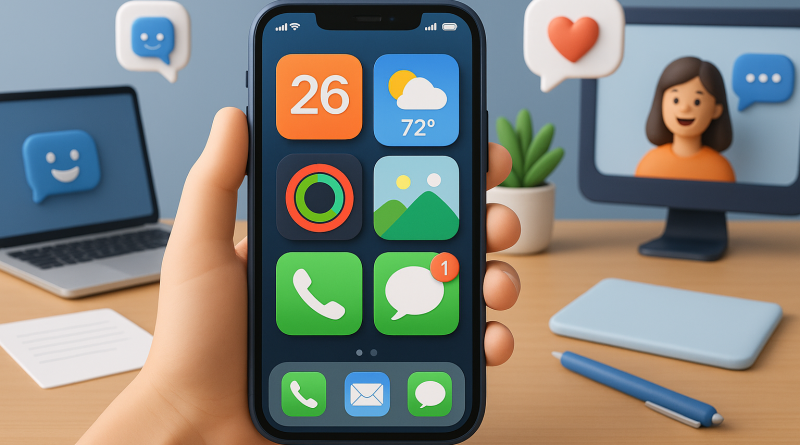
Widgets have come a long way on iPhone, and with iOS 26, they’ve turned into powerful tools for productivity and personalization. At iphone26.com, we know that even advanced users sometimes overlook just how much these tiny tiles can transform their workflow. Here’s your quick, empathetic coaching session on how to use iOS 26 widgets to your advantage.
1. Start with the Right Widgets
Long-press your Home Screen or Lock Screen and tap the “+” icon. Browse widgets by app—focus on tools that align with your daily digital flow, such as calendar events, battery stats, or smart home controls.
2. Customize for Efficiency
In iOS 26, widgets are dynamic and interactive. Use the “Edit Widget” option to tailor settings—switch accounts, adjust refresh intervals, or fine-tune what data appears front and center.
3. Stack and Swipe
Don’t clutter; stack. Drag one widget over another to create a Smart Stack. Swipe through widgets effortlessly and let iOS learn which to show based on your habits.
4. Integrate with Focus Modes
Each Focus Mode can now have its own widget setup in iOS 26. Combine your productivity widgets for work, and switch to lifestyle tools during downtime.
Bottom line: Once you know how to use iOS 26 widgets, you’ll realize they’re not just shortcuts—they’re gateways to smarter mobile living.
To get the best in Mobile Communication Solutions, stay tuned to iphone26.com.